Browser automation lets us control a web browser programmatically: clicking buttons, filling forms, navigating pages. But on platforms like LinkedIn, fully automated posting crosses a line. The platform prohibits it, and for good reason.
What if we automate everything except the final click? In this case study, we build a Claude Code skill called /linkedin-post that drafts content, opens LinkedIn, and fills the composer. Then it stops. We review and post ourselves.
The Pattern: Stage for Human Review
When we think about browser automation on private platforms, legitimate concerns come up. LinkedIn's Terms of Service prohibit automated posting. Scraping user data would be inappropriate. But staging content for human review? That falls into a different category.
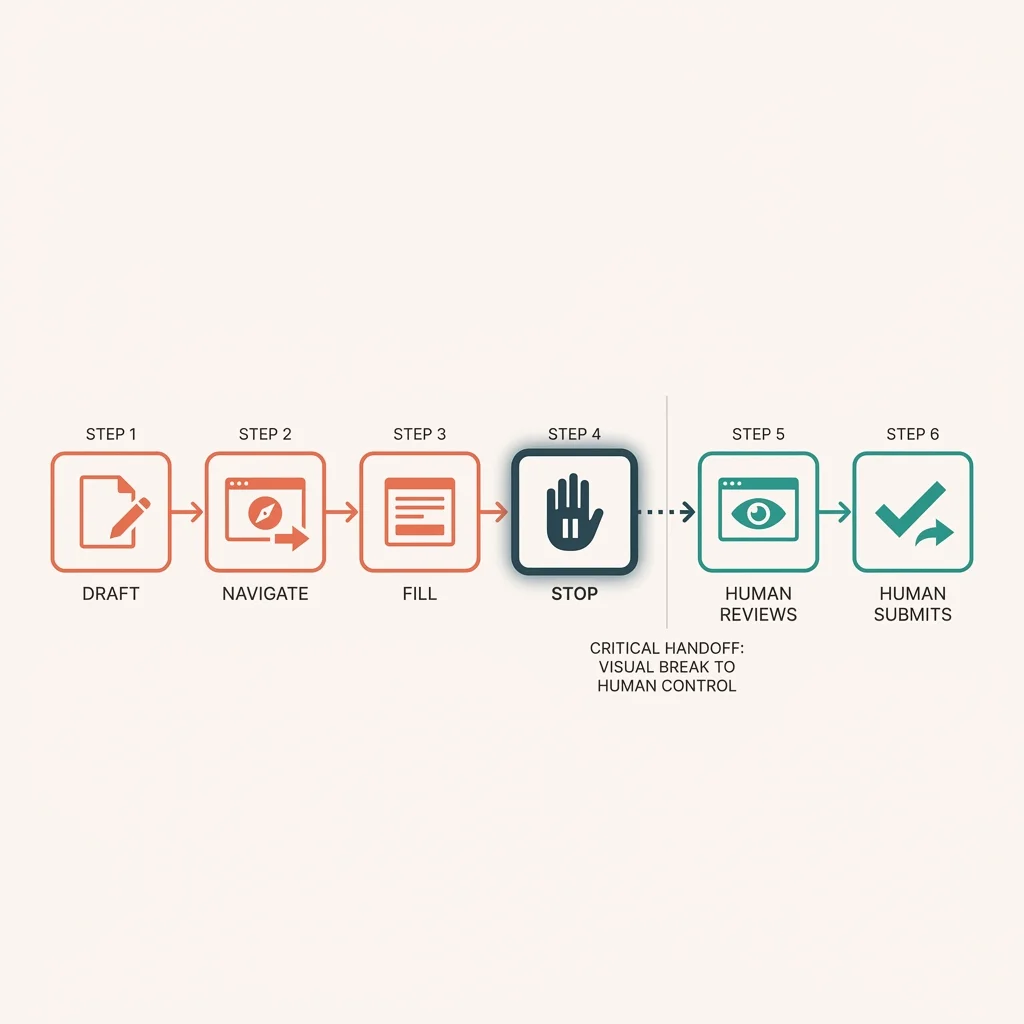
Here's how the pattern works:
- We draft the content based on context
- We navigate to the form automatically
- We fill the text fields automatically
- We stop
- We review, edit if needed, and submit manually
We never lose control. Automation handles navigation and data entry. The decision to publish stays with us.
This pattern applies beyond LinkedIn. Any form-filling workflow where we want assistance but retain final approval fits the model: job applications, support tickets, feedback forms, survey responses.
Why Browser Automation
LinkedIn doesn't offer a public API for posting. The platform actively blocks headless browsers and automated requests. So if we want to automate anything, we need a real browser with a real session.
This is where Agent Browser comes in. By connecting to an existing Chrome session where we're already logged in, we can interact with the page as ourselves. No credential storage needed. No authentication bypass. Our existing session handles identity.
The accessibility tree gives us structured access to page elements. Instead of fragile CSS selectors that break when LinkedIn updates their interface, we can find elements by their semantic role: "textbox," "button," "dialog." This approach survives UI changes better than coordinate-based clicking or selector chains.
The Skill Workflow
Let's walk through the five phases of the /linkedin-post skill:
Phase 1: Draft Content
Before we touch the browser, we draft the post. LinkedIn has specific formatting conventions that affect engagement:
Structure:
- First line is critical (only ~140 characters show before "see more")
- Short paragraphs with white space
- One clear idea per post
- Call to action or question at the end
- 3-5 hashtags, placed at bottom
We generate a draft and review it for approval before proceeding. If the draft needs adjustment, we revise it without having opened LinkedIn at all.
Phase 2: Connect to Browser
Using Agent Browser, we connect to an existing Chrome instance. This requires Chrome to be running with remote debugging enabled, but the payoff is significant: we get our actual session with all our logged-in state intact.
A quick snapshot confirms we can see the page. If LinkedIn shows a login screen instead of the feed, we stop and log in manually.
Phase 3: Navigate to Composer
For personal profiles, we look for the "Start a post" button on the feed page. For company pages, the flow differs slightly: Dashboard → Create menu → Start a post.
The accessibility tree makes finding these elements reliable. We search for a button with the right label rather than guessing at class names or element IDs.
Phase 4: Fill Content
Once the composer dialog opens, we locate the text editor element and fill it with our drafted content. LinkedIn's composer handles formatting, converting line breaks to paragraphs and recognizing hashtags.
We verify the content appears correctly by taking another snapshot. The text should match what we drafted.
Phase 5: Stop
This is the critical phase: we do nothing. The Post button is right there, but we don't click it.
The skill reports success and reminds us to review the staged content. From here, we can:
- Review and click Post
- Edit the text before posting
- Add images or links
- Schedule for later
- Dismiss to discard
We make the final call.
Handling Both Account Types
LinkedIn has two posting contexts: personal profiles and company pages. We can handle both, though the navigation differs.
Personal Profile:
- Navigate to linkedin.com/feed
- Click "Start a post" button
- Fill composer
- Stop
Company Page:
- Navigate to company admin dashboard
- Click "Create" link
- Select "Start a post" from menu
- Fill composer
- Stop
The extra menu step for company pages means we need to check which context we're in. The page title or URL pattern tells us.
What This Changes
Let's compare the manual workflow for a LinkedIn post:
- Think about what to say
- Open browser
- Navigate to LinkedIn
- Wait for page load
- Click to open composer
- Type or paste content
- Format and adjust
- Review
- Post
With this skill, our workflow becomes:
/linkedin-post about [topic]- Review draft, approve
- Review staged post in browser
- Click Post
We still do the thinking. We still do the reviewing. We still make the posting decision. What disappears is the navigation, waiting, clicking, and pasting. If we're posting regularly, this friction adds up.
Limitations
A few constraints apply to this approach:
Requires existing session: We need to be logged into LinkedIn in Chrome already. The skill can't authenticate on our behalf.
Headed mode only: LinkedIn blocks headless browsers. The browser window must be visible during automation.
No image upload: While we could potentially automate image selection, this adds complexity. For now, if our post needs media, we add it after the text is staged.
Platform changes: LinkedIn updates their interface regularly. Element labels and page structure may shift. The accessibility tree approach is more resilient than CSS selectors, but not immune.
Rate considerations: Rapid automated interactions might trigger LinkedIn's anti-bot systems even though we're not actually posting. Adding pauses between actions helps.
The Broader Pattern
This skill demonstrates a template we can apply to many form-filling scenarios:
DRAFT → NAVIGATE → FILL → STOP → WE REVIEW → WE SUBMITThe key insight is identifying where automation adds value (navigation, data entry) versus where our judgment matters (content decisions, submission approval). By stopping before the irreversible action, we get efficiency without losing control.
Where else might we apply this pattern?
- Job applications: Draft cover letter, fill application form, stage for review
- Support tickets: Gather context, fill ticket fields, verify before submitting
- Feedback forms: Synthesize talking points, fill survey, review responses
- Data entry: Transform source data, fill target form, validate before saving
Each case involves repetitive mechanics that automation handles well, combined with judgment calls that benefit from our review.
Conclusion
Browser automation for form-filling walks a line between helpful assistance and unwanted automation. The "stage for human review" pattern keeps us in control while eliminating mechanical clicking and typing.
For LinkedIn posting specifically, this skill transforms a multi-step manual process into a single command plus review. We draft conversationally. Navigation happens automatically. The posting decision stays with us.
The command /linkedin-post handles the mechanics. We handle the judgment.
Suggested Citation
Cholette, V. (2026, February 1). Staging LinkedIn posts with browser automation. Too Early To Say. https://tooearlytosay.com/research/methodology/linkedin-post-staging/Copy citation